


USB OTG Camera
0.00.00 Reviews
App Specs
- Version
- 4.0
- Updated On
- License
- Free
- Downloads
- 10,000+
- Developer
- Boss Inc
- Categories
- Libraries & Demo
- Platform
- Android
Screenshots
 Analysis by AppCompare
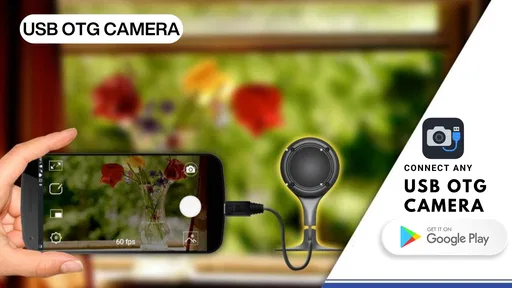
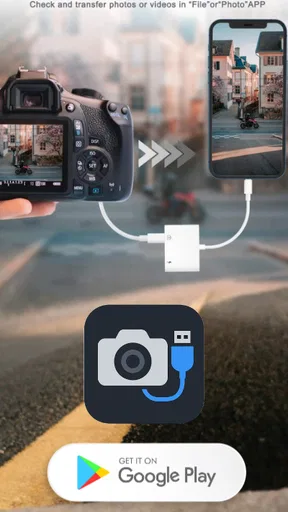
I judge a camera app by whether it helps me solve a real problem, not by how impressive its feature list sounds. USB OTG Camera is designed for a specific setup: connecting an external USB camera to an Android phone rather than relying only on the phone’s built-in camera. That can be useful when a small inspection camera is easier to guide into a tight space than a phone, or when you already own a compatible USB camera and want a screen to view its output. It is a free app from Boss Inc in the Libraries & Demo category, and its purpose is more practical than artistic: making an Android device a viewing and capture companion for USB camera work.
Getting Started with USB OTG Camera
First things first, setting up the USB OTG Camera is as easy as pie. All you need is your smartphone, a compatible USB camera, and an OTG cable. Once you’ve got these, simply plug in the camera, and you’re good to go. No complicated setup, just plug and play. Trust me, even if tech isn’t your thing, you’ll find this setup a breeze.
Before You Connect: Check the Whole Setup
The most important practical question is not just whether the app is installed, but whether your particular phone, adapter, and camera can work together. USB OTG is the bridge that lets a phone communicate with an attached device, but the physical plug alone does not guarantee compatibility. Before planning an important inspection around this app, I would test the exact camera and cable combination at home. A short trial can reveal a loose connector, a camera the phone does not recognize, or a setup that is awkward to hold while looking at the screen.
For a first test, keep the phone unlocked and the camera within easy reach. Connect the pieces without forcing the port, then check that the camera’s view appears before moving into a cramped or poorly lit area. If the picture does not show, reseat the connection and check that the camera is intended to work through USB OTG. This simple routine is more useful than assuming every USB camera behaves like a plug-in webcam.
Features That Stand Out
Here’s where it gets interesting. This app offers a range of features that might make it your go-to for mobile photography. Whether you’re a professional photographer or just someone who loves taking pictures, the app has something for everyone.
- Live Preview: No more guessing how your photos will turn out. With a live preview, what you see is what you get.
- Manual Controls: Take full control with manual focus, exposure, and white balance settings.
- Recording Options: Capture video in high definition, ensuring you don’t miss any details.
- Snapshot Functionality: Quick snapshots are a tap away, ideal for capturing those spur-of-the-moment scenes.
What Those Controls Mean in Practice
Manual focus is especially relevant when the camera is pointed at something close, such as a connector, a small component, or a narrow gap. Autofocus can hunt when the subject is near the lens or surrounded by confusing edges; the option to adjust focus gives you a way to make the target clearer instead of repeatedly shifting the camera. Exposure and white balance can also help when an inspection area is unusually bright, dim, or tinted by artificial lighting. I would treat these controls as tools for getting a more readable view, not as a promise that every difficult image can be corrected.
A useful workflow is to settle the camera position first, then adjust focus and exposure while watching the preview. Moving the camera and changing settings at the same time makes it harder to tell which adjustment helped. For a quick check, a snapshot can preserve what you saw; for a process that changes over time, recording is more appropriate. That distinction matters: still images are easier to review quickly, while video can show movement or a sequence of steps but takes more storage and is less convenient to scan.
Worth Reading Before You Choose

Flipboard Shows What News Apps Must Do Beyond the Feed

Switching to Android Auto Means Rethinking Your Driving Routine

Google Calendar Makes a Crowded Week Easier to Manage

Ludo King Makes the Most of the Minutes Between Plans

Baby Panda World Brings Quick Play to Modern Phones, but Its Game Library Feels Busy

ESPN’s Live Game View Makes Following Close Games Easier
The User Experience
Using the app feels intuitive and smooth. The interface is clean, keeping things simple and focused on what matters most – capturing great images. One thing I found particularly handy is the app’s ability to support various USB cameras, making it versatile for different photography needs.
For those concerned about performance, the app runs efficiently, without draining your phone’s battery excessively. Of course, using the app for extended periods will use up some juice, but that’s to be expected with any camera app.
A Realistic Inspection Routine
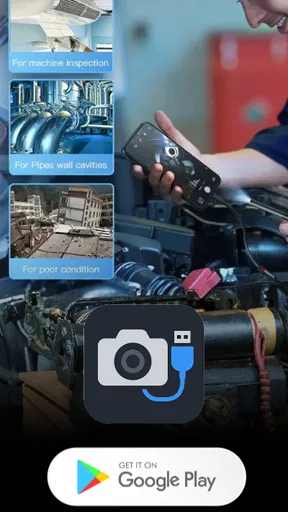
Imagine checking behind a washing machine after noticing a damp patch. Pulling the appliance out may be awkward, and a phone camera may not fit into the gap. With a compatible USB inspection camera connected through an OTG cable, I could guide the small camera into the space while keeping the phone in front of me to view the picture. I would start with a slow sweep, pause when something looked unusual, adjust focus if needed, and take a snapshot for comparison after moving the camera. The phone stays outside the tight area, which is the practical advantage of this arrangement.
The same approach can help with looking into a cabinet, examining a hard-to-reach corner, or checking a small object on a workbench. It is not a substitute for a qualified repair professional when a problem involves electrical, plumbing, or structural safety. The app can help you see; it cannot diagnose the cause or make an unsafe inspection safe. Keeping that boundary in mind makes the tool more useful, not less.
Where It Fits Among Camera Options
A regular phone camera is the easier choice for everyday photos because it is already attached, quick to open, and designed for general scenes. A dedicated camera can be better for photography where lens quality, ergonomics, or specialized controls matter. USB OTG Camera occupies a narrower role: it connects an external USB camera to an Android device, which can make sense when the camera’s shape or reach is the key advantage. It is not an all-purpose replacement for either option.
Compared with a standalone inspection monitor, using a phone can mean carrying one fewer screen, especially if the phone is already with you. The trade-off is that the arrangement depends on a compatible camera, OTG support, a suitable cable, and a stable connection. If you need a dependable work setup for repeated inspections, test those parts together before relying on them on site. If you only need a conventional selfie, landscape shot, or family photo, your built-in camera is the simpler choice.
Who Is This App For?
If you’re someone who enjoys experimenting with photography, USB OTG Camera opens up new possibilities. It’s perfect for travelers, bloggers, or anyone who finds themselves needing a reliable camera setup on the go. The app also caters to those who prefer having manual control over their shots, allowing for more creativity.
Additionally, the app can be a lifesaver for content creators who need a portable setup that doesn’t compromise on quality. Whether you’re vlogging, live streaming, or just snapping photos for social media, this app is a valuable tool.
I would be more cautious about recommending it to someone who does not already have a USB camera or a clear reason to connect one. The app’s usefulness depends on that external hardware, so installing it by itself will not turn the phone into an inspection camera. It is also not the right pick for anyone who needs a guaranteed setup without first checking device compatibility. A user who expects the same straightforward experience as opening the built-in camera may find the extra cable and camera connection inconvenient.
Cost, Availability, and Expectations
The app is free, so trying it does not require a purchase. That makes it a low-risk option for someone who already has an OTG adapter and a USB camera to test. The value is less compelling if you would need to buy hardware solely to use the app: the free download does not remove the cost or compatibility considerations of the camera and cable. I would decide based on the inspection task and equipment already on hand rather than treating the app as a complete camera kit.
USB OTG Camera is rated for Everyone, was released on July 6, 2025, and its current version is 4.0. It requires Android 8.0 or later. It has over ten thousand installs, while its average rating is zero, so that rating does not offer a useful signal for comparing user experiences. I would put more weight on a hands-on compatibility test than on the rating when deciding whether it will suit a particular camera.
Limits Worth Planning Around
The biggest trade-off is the dependence on several connected pieces of equipment. A phone, camera, and cable can all be individually fine but still make an awkward combination to hold. A cable can tug as you reposition the camera, and a phone screen can be difficult to watch when your hands are occupied. If you expect to work for more than a quick look, arrange the phone where you can see it and keep the cable from pulling on the port.
Lighting and image interpretation are also worth thinking about. A live view may help you locate an area, but shadows, reflections, or a lens pressed too close to a surface can make details hard to judge. Try changing the viewing angle before assuming the subject itself is unclear. When capturing evidence for your own reference, take a still image from a steady position rather than relying on a blurred frame from a moving inspection.
People often want to know whether they can use any USB camera, whether the app replaces a dedicated monitor, and whether it is suitable for professional diagnosis. The practical answer is to verify the exact camera-and-phone combination first; compatibility should not be assumed from the connector alone. A phone may serve as a convenient display for a compatible setup, but a dedicated monitor may be preferable for a fixed, repeated job. And while the app can assist with viewing and recording, it does not provide expert interpretation of what the camera sees.
Final Thoughts
In a world where capturing the perfect shot can make or break your content, having the USB OTG Camera app in your arsenal is a smart move. It’s all about convenience and quality, and this app delivers both. While it might not replace your professional equipment, it’s a fantastic backup that fits in your pocket.
So, if you’re looking to enhance your mobile photography without the hassle of carrying around bulky equipment, give this app a shot. You might just find it to be the unexpected hero in your photography journey.
Ready to explore the world through a different lens? Download the app and start snapping!
My verdict is positive for a specific user: someone with a compatible USB camera who wants to use an Android phone as a convenient viewing and capture device. The free price makes a trial sensible when the necessary hardware is already available, but the app is not a reason by itself to buy an inspection camera. Test the connection before depending on it, use the built-in phone camera for ordinary photography, and choose dedicated equipment when reliability or specialized work matters more than portability. For occasional close-up checks, though, this focused approach can be a handy addition to a toolkit.
Pros
- Easy to connect USB devices.
- Supports various camera formats.
- Real-time video streaming.
- User-friendly interface.
- No additional drivers needed.
Cons
- Limited device compatibility.
- May drain battery quickly.
- Occasional connection issues.
- Requires external storage.
- Some features are paywalled.
FAQs for USB OTG Camera
What is USB OTG Camera and how does it work?
USB OTG Camera is an application that allows your Android device to connect to external USB cameras using the USB On-The-Go (OTG) protocol. This enables your device to act as a host, allowing you to view, capture, and record live footage directly from the connected camera, enhancing your device's photography capabilities.
Is my device compatible with USB OTG Camera?
To use USB OTG Camera, your device must support USB OTG functionality. Most modern Android devices have this capability, but it’s recommended to check your device specifications or consult the manufacturer. Additionally, you'll need a compatible USB OTG adapter to connect the external camera to your device.
Does USB OTG Camera require additional hardware?
Yes, USB OTG Camera requires a USB OTG cable or adapter to connect an external USB camera to your device. The app itself does not provide any hardware, so you’ll need to purchase the necessary cable separately. Ensure that the camera you intend to use is also compatible with Android devices.
Are there any specific camera types that work best with USB OTG Camera?
USB OTG Camera generally supports a wide range of USB webcams and endoscopes. However, not all cameras may be compatible due to differences in drivers and protocols. For best results, it’s advisable to use popular brands that are known to work well with Android devices and have universal driver support.
What are the potential limitations of using USB OTG Camera?
While USB OTG Camera expands your device’s capabilities, there are some limitations. The app may not support high-resolution video streaming due to hardware constraints or bandwidth limitations. Additionally, battery consumption may increase when using external devices, and not all USB cameras will be compatible with every Android device.


